|
Android Application Development Environment
2010/09/27 |
| Build Android Application Development Environment
|
|
| [1] | Install Eclipse first. See here. |
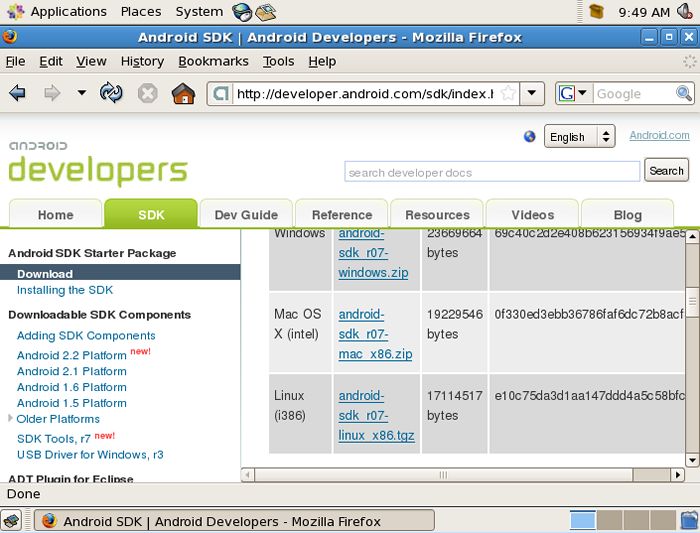
| [2] | Download android-sdk from following site. ⇒ http://developer.android.com/sdk/index.html |
|
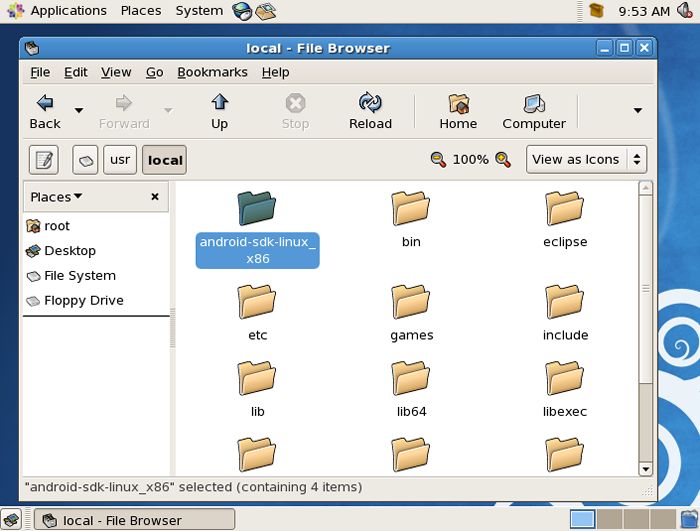
| [3] | Extract the dowloaded file under any directory. (on this example, extract it under /usr/local like follows) |
|
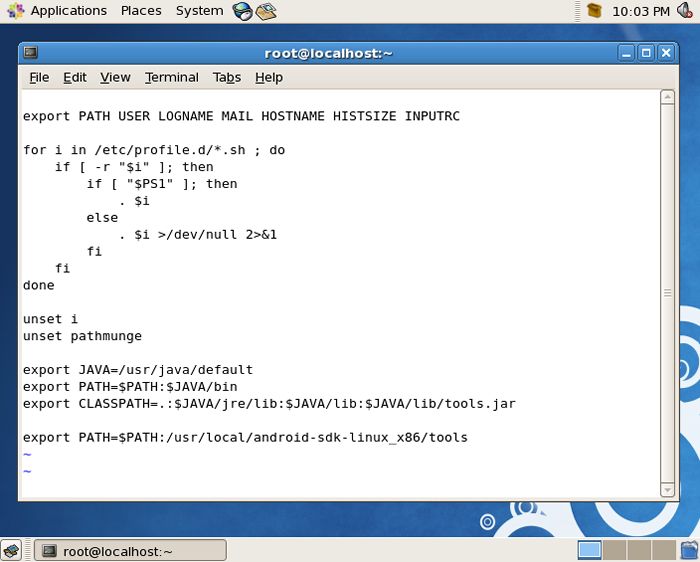
| [4] | Add PATH in /etc/profile like follows (last line). After adding, run a command "source /etc/profile". |
|
| [5] | Start Eclipse and open [Help]-[Install New Software]. |

|
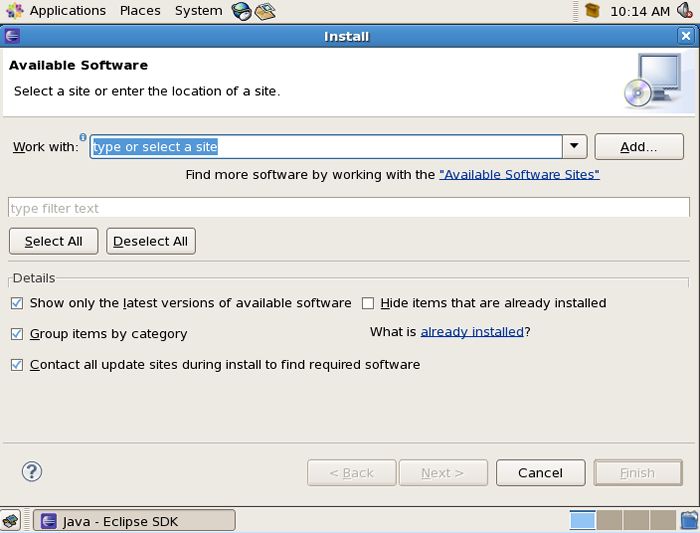
| [6] | Click "Add" button. |
|
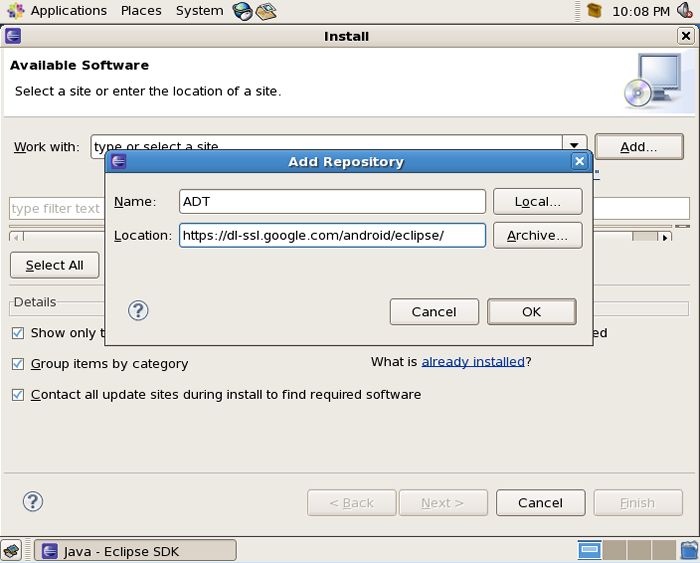
| [7] | Input any name in Name field and input "https://dl-ssl.google.com/android/eclipse/" in Location field. |
|
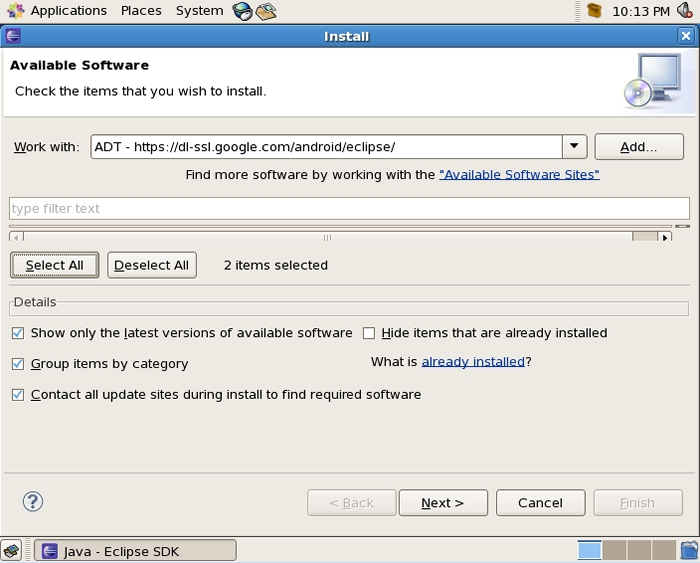
| [8] | After cliking "Select All" button, Go Next. |
|
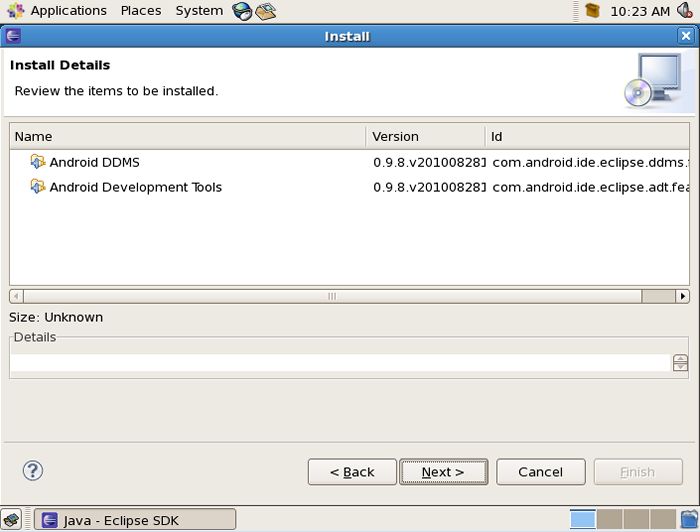
| [9] | Click "Next" to go next. |
|
| [10] | Check a box "I accept xxx" to agree lisence terms. |

|
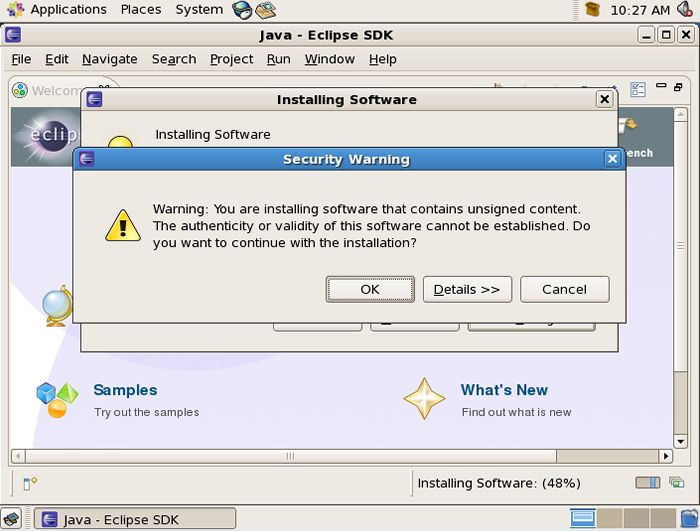
| [11] | Installation starts. Following warning is shown during installation, then Click "OK" to continue. |
|
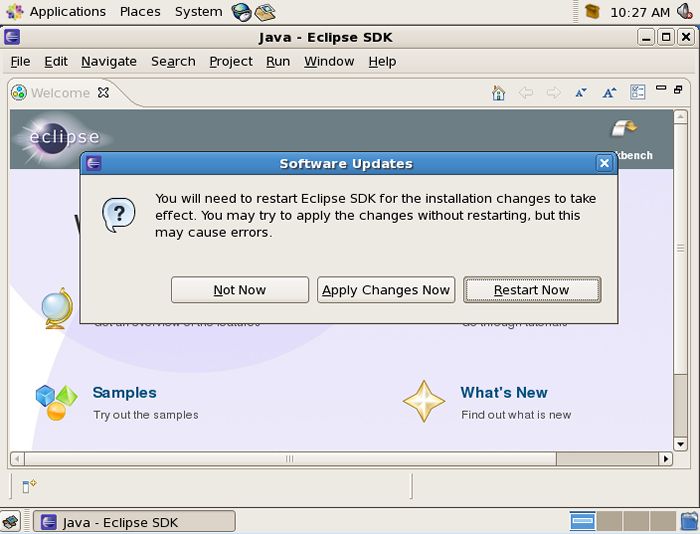
| [12] | Installation finished. Click "Restart Now". |
|
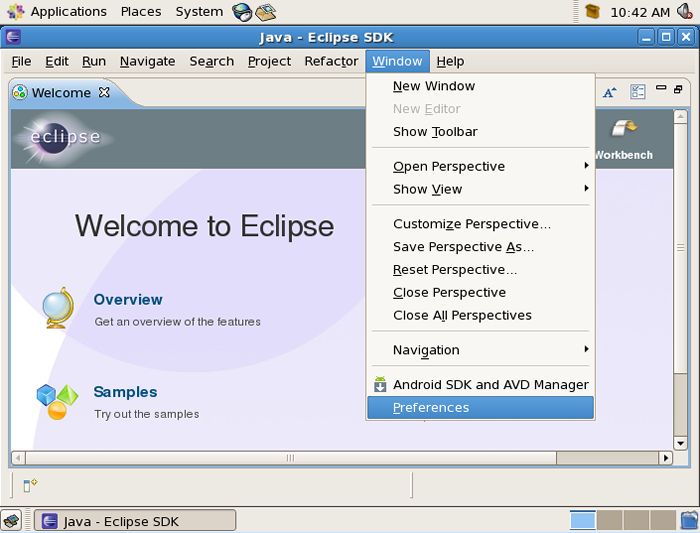
| [13] | Open [Window]-[Preferences]. |
|
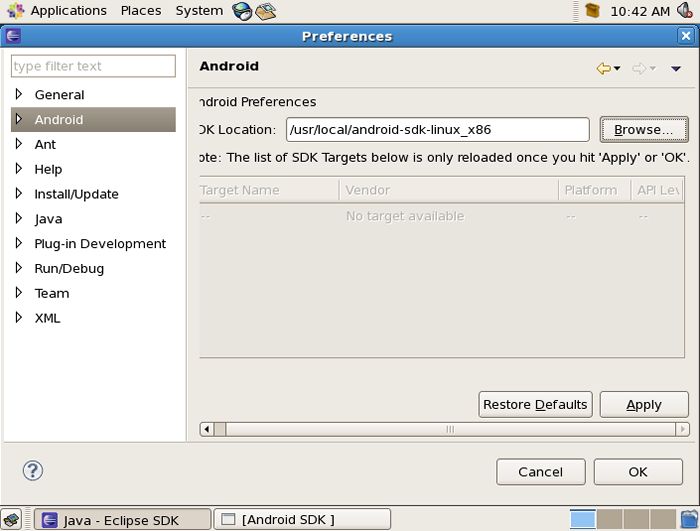
| [14] | Select Android on the left and Click "Browse" button on the right and specify a directory that is located Android-sdk. |
|
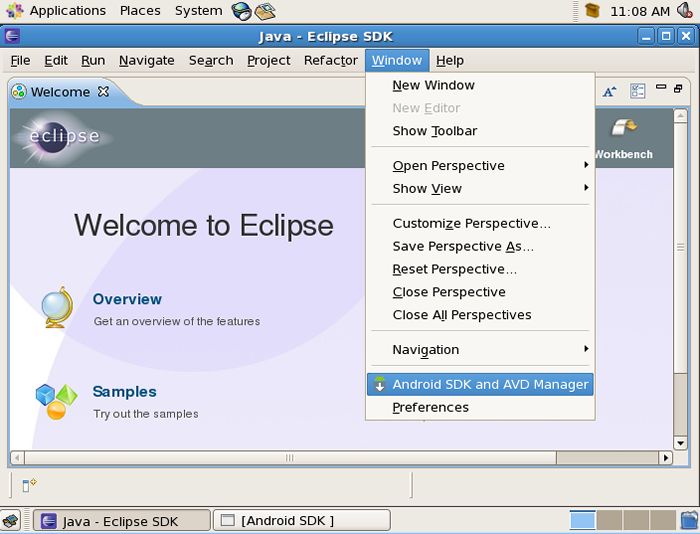
| [15] | back to the main screen and open [Window]-[Android SDK and AVD Manager], a waring is shown then ignore and go next. |
|
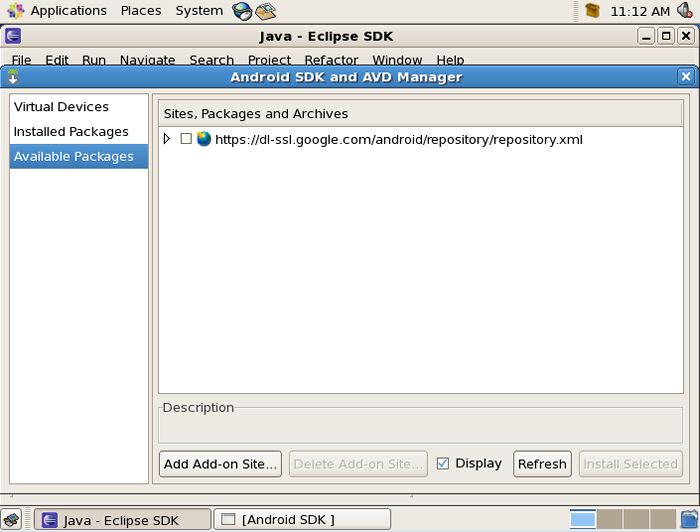
| [16] | Check a box "https xxx" on the right. |
|
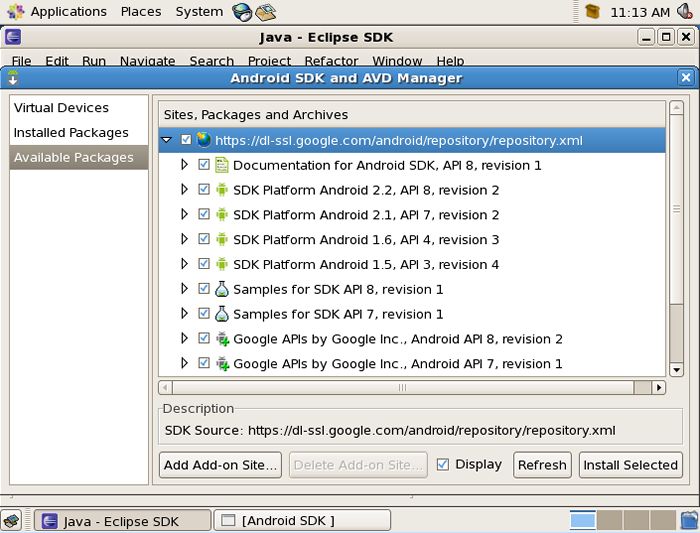
| [17] | Click "Install Selected". |
|
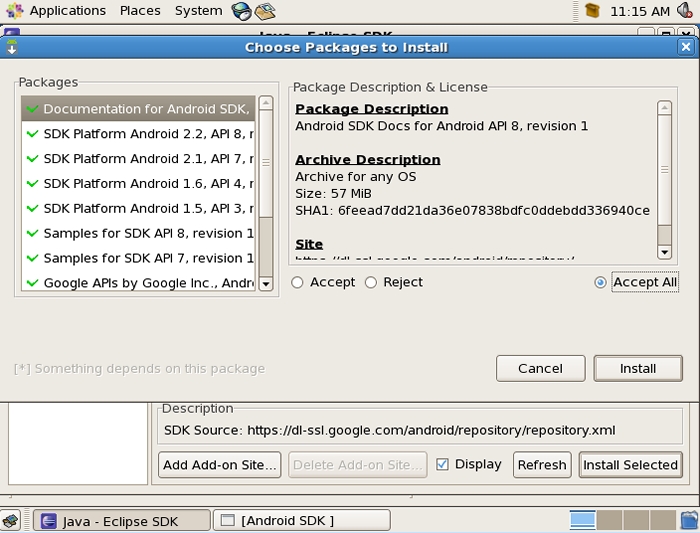
| [18] | Check a box "Accept All" and Click "Install" button. After finishing installation, Building Android Application Development Environment completed. |
|
|
Create a test project
|
| Create a "Hello World" application for a test. |
|
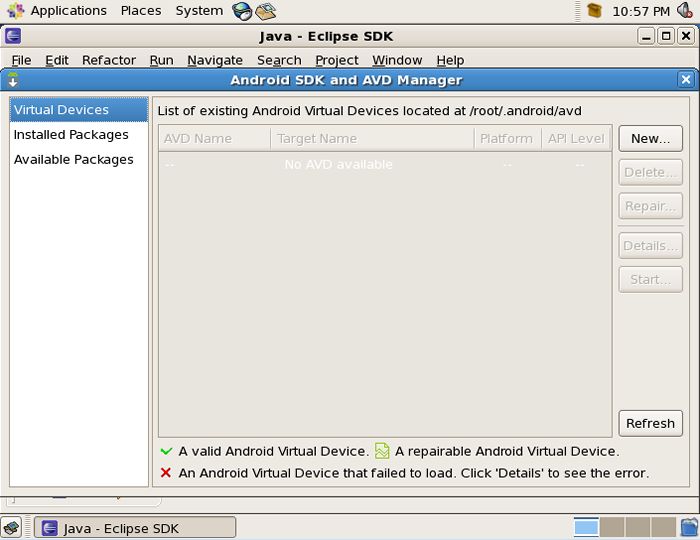
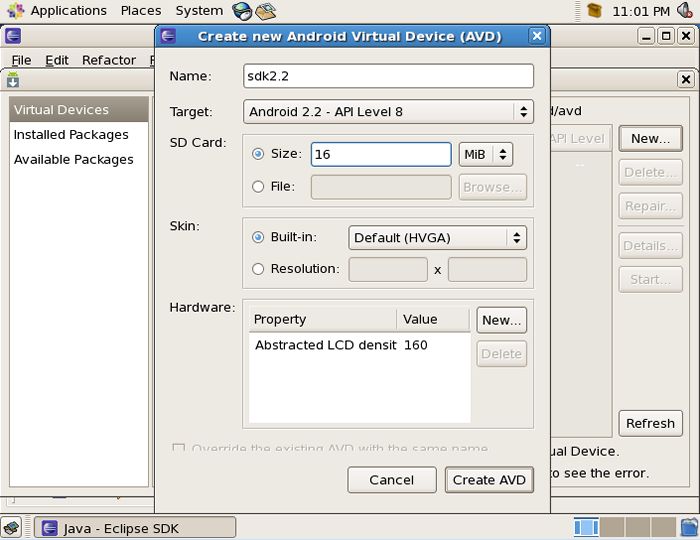
| [19] | Start Eclipse and open [Window]-[Android SDK and AVD Manager], and then select "Virtual Devices" on the left section and Click "New" on the right section. |
|
| [20] | Input any parameter you like and Click "Create AVD" button. |
|
| [21] | Just created. |

|
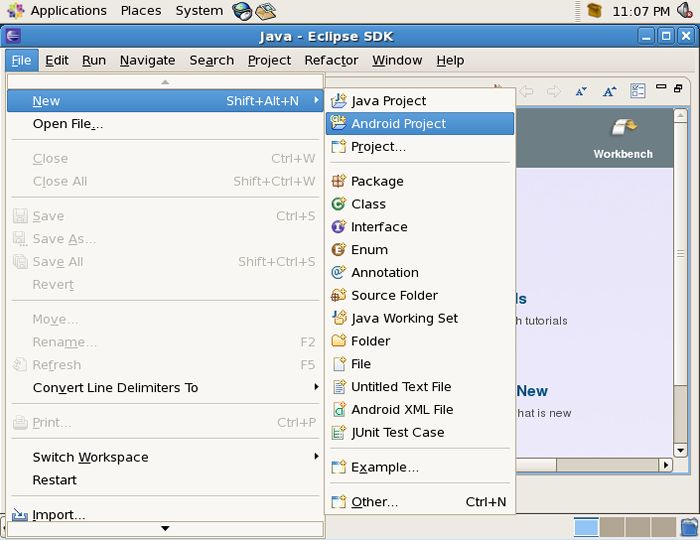
| [22] | Back to the main screen and open [File]-[New]-[Android Project]. |
|
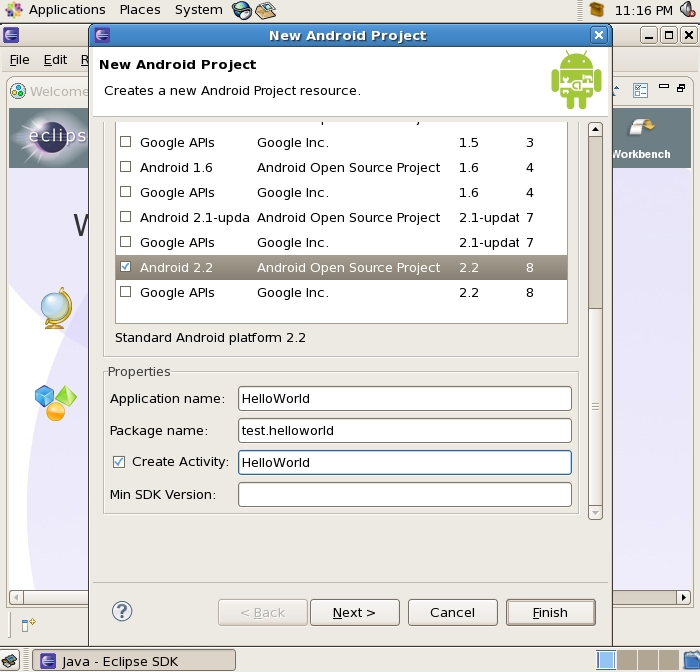
| [23] | Input any parameter and go next. |
|
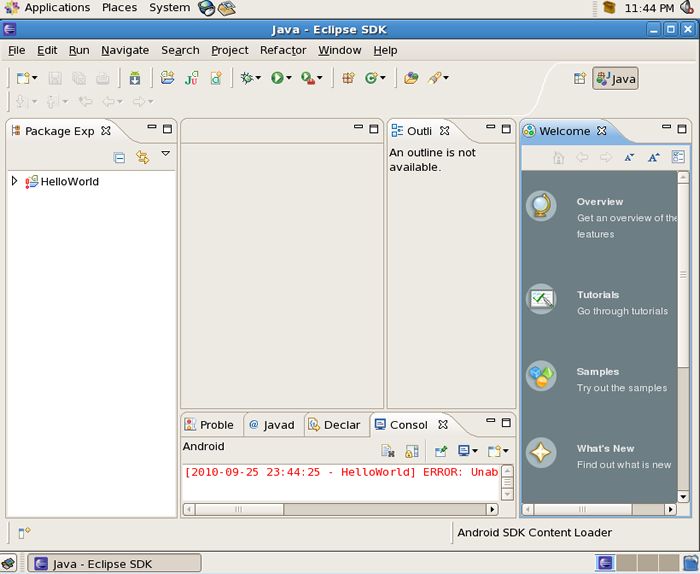
| [24] | A project is created. (the author restart Eclipse after creating it because an error occured) |
|
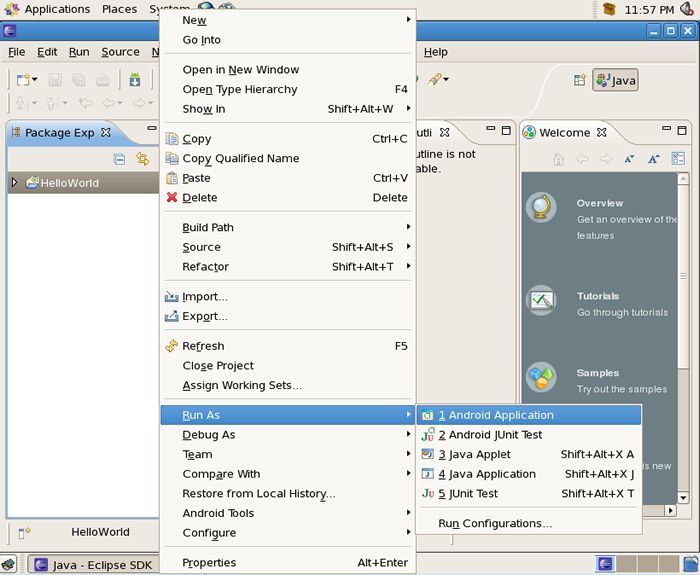
| [25] | Click Android Application with right button and select like follows. |
|
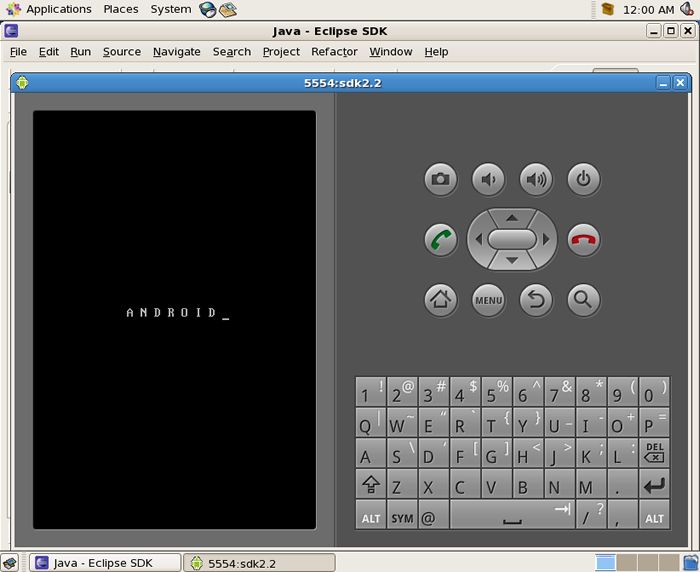
| [26] | Android emurator starts. |
|
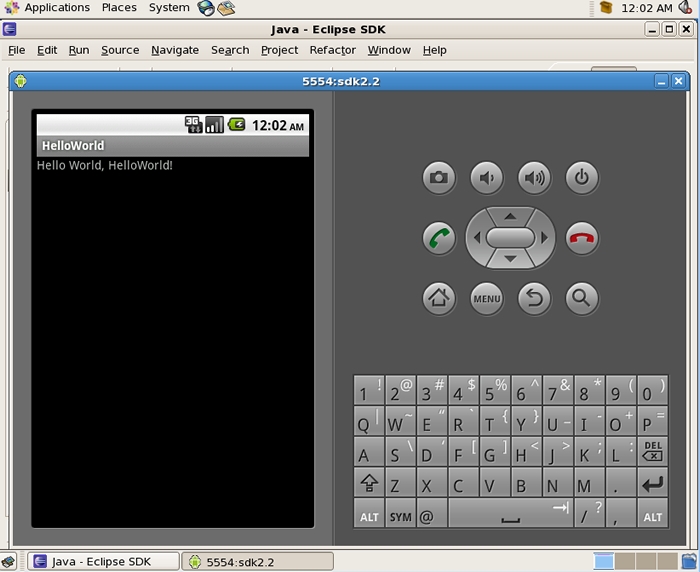
| [27] | Just working Hello World application. |
|